How do I set up Sonos speakers on my eero network?
For basic Sonos setups with 1-4 speakers, you can connect them via wifi through the Sonos app. For advanced setups with 5 or more speakers, connecting with Ethernet provides better performance and reliability.
What do I need before starting?
Before setting up your Sonos speakers:
Place your speakers in your desired location and connect them to power
Download the Sonos app — the app will guide you through the setup process
What's the recommended basic setup?
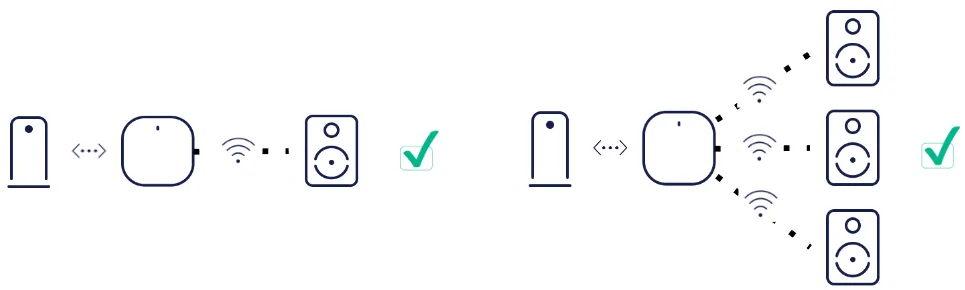
For the simplest setup with optimal performance, we recommend connecting your Sonos speakers via wifi to your eero network. No speakers should be plugged into any eeros on your network via an Ethernet cable. See below for examples.
How do I set up a new Sonos system on eero wifi?
Open the Sonos App for iOS or Android
Tap Set up a new system, then create or sign in to your Sonos account
On the Auto Discovery screen, tap Continue next to Location and Bluetooth. This gives the Sonos App permission to automatically discover your Sonos speakers
Tap Add on the popup showing your Sonos speaker. If you're setting up using the Sonos S1 Controller, tap Continue > Set up products
When your speaker is found, tap Continue
Touch your Sonos device to the speaker in the location indicated by the app. You'll hear a chime when successfully paired
The app will ask for your eero network's wifi password. Enter it and tap Connect
Select the name of the room your speaker will be in
If an update is available, you'll be prompted to install it after assigning the room. Once the update completes, tap Done
To set up more speakers:
Power them on in the room you'd like them in
Stand next to the speaker you want to add and open the Sonos App
The app will automatically detect the new speaker — tap Add
You won't need to re-enter your wifi password. The app will save it for you
Follow the steps in the app to set up your music services
How do I add a speaker to my existing Sonos system?
Open the Sonos App for iOS or Android
From the Settings tab, tap System > Add Product
Follow the steps in the app to connect your new speaker to your Sonos system
How do I set up an advanced Sonos system?
For advanced Sonos systems with many speakers (5 or more), connecting your Sonos speakers to your network with Ethernet can provide a better experience. When you do this, we recommend that Sonos speakers are connected via Ethernet or wifi, but not SonosNet.
Wiring guidelines
If you're wiring Sonos speakers to your eero network, follow these guidelines for the best performance:
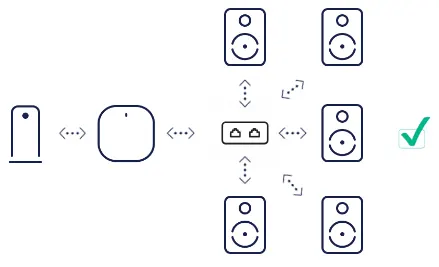
Wiring a single speaker: You can wire it to any of your eeros
Wiring multiple speakers: Wire them to the same eero or the same network switch. We don't recommend wiring different Sonos speakers to different eeros
If you have multiple switches: Wire all secondary switches back to the primary switch, not to an eero
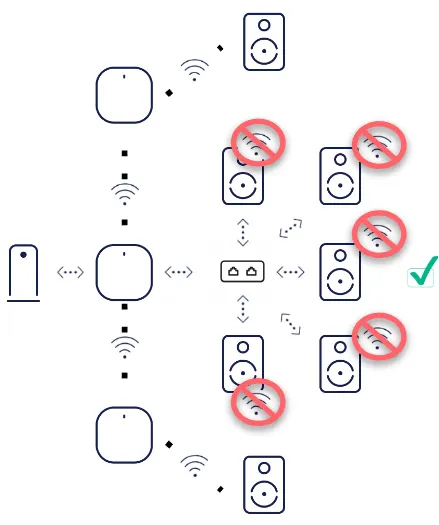
Disable wifi on wired speakers: Any Sonos speaker that's connected via Ethernet to an eero network should have its wifi capabilities disabled
To disable wifi:
Open the Sonos app for iOS or Android
From the Settings tab, tap System
Under Products, tap the name of the room you'd like to modify
On the following screen, tap your product's model name under the Products heading
Tap Disable Wi-Fi
Note: If you're unable to hardwire your speakers, other Sonos speakers should be connected via wifi to your eero network, not via SonosNet.
Example setups
Wireless Sonos:
Wired Sonos:
Mixed Wired and Wireless Sonos:
Key:

Wired

Wireless

Modem

eero

Sonos

Switch
For information on recommended eero network configurations for Sonos, refer to Sonos' setup guide. You can check out our troubleshooting guide for troubleshooting tips.

Get the support you need
Choose how you'd like to connect: find contact numbers, international support options, or open a ticket.