Introducing eero Multi-Admin
Jul 16, 2026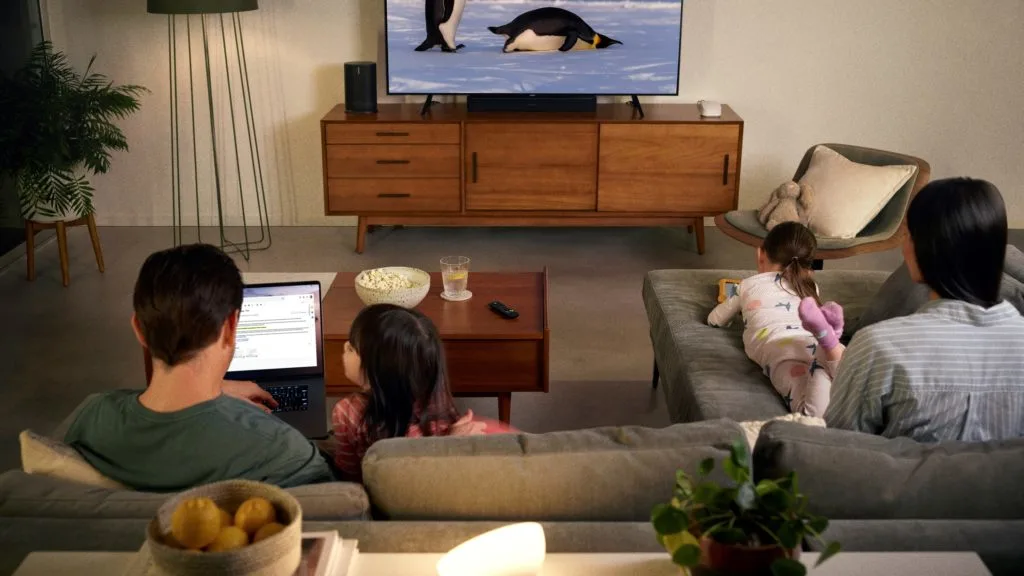
Share control over your network
Multi-Admin makes it easy to add up to 10 people as admins on your network so they can manage its features and settings.
Sharing admin access is ideal for:
Roommates living in a shared household
Helping relatives set up a network
Granting access to split owners of a shared vacation home
Note: Network admins will be able to see your name, but cannot delete the network, remove eero devices, manage subscriptions or Amazon Connected Home, nor add/remove other admins. Admins will need to download the eero mobile app and create an eero account – please only invite admins who are of legal age to create an eero account.
Free for all eero customers
If you have an eero network, you can add and remove admins with Multi-Admin. It’s a free feature! Just make sure your app is updated to version v6.18 or higher.
What can an admin do?
Set and modify parental controls and content filters (where available)
Troubleshoot network issues
Block devices from joining a network
Perform password resets
Set up profiles
And more
How to grant admin access?
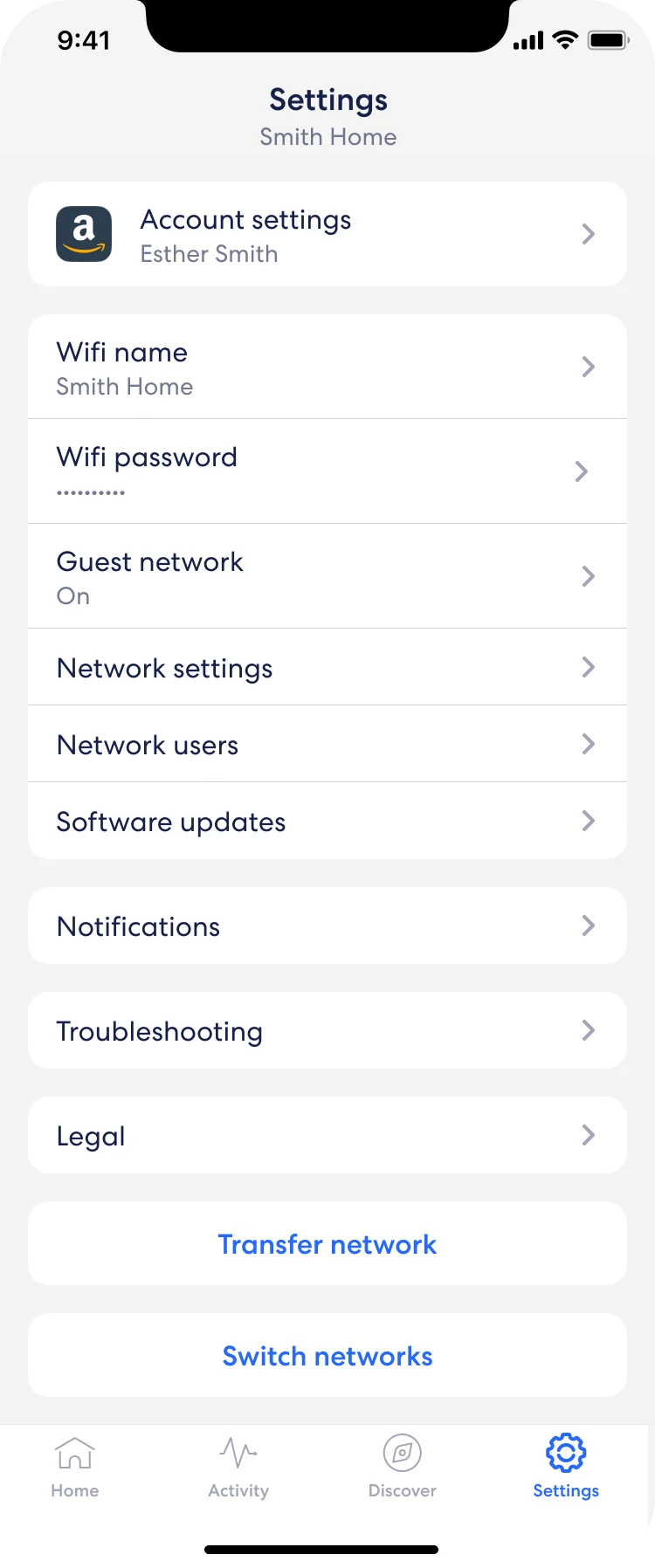
Step 1. Head to Settings in your eero app and tap on Network users.
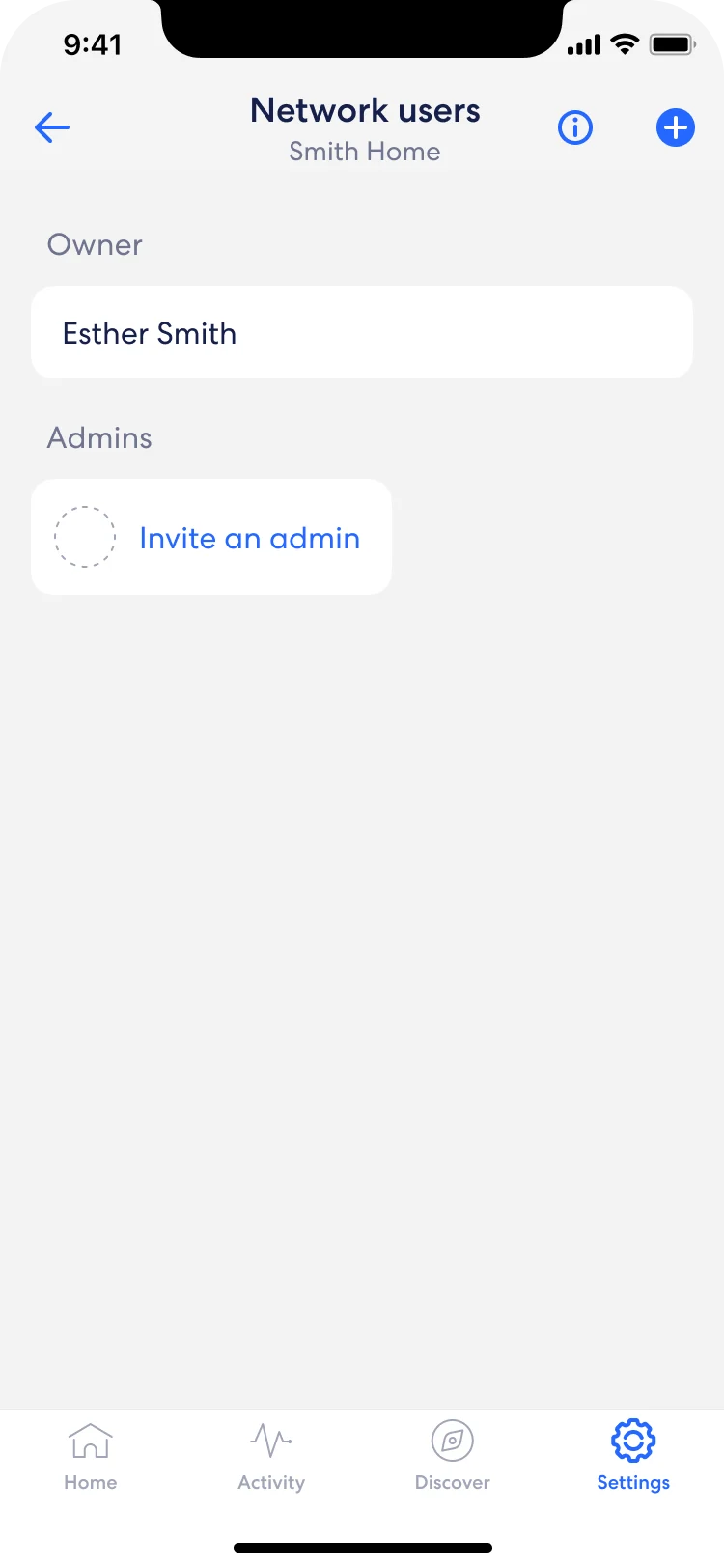
Step 2. Under the Admin section, tap Invite an admin.
Step 3. Tap Invite admin.
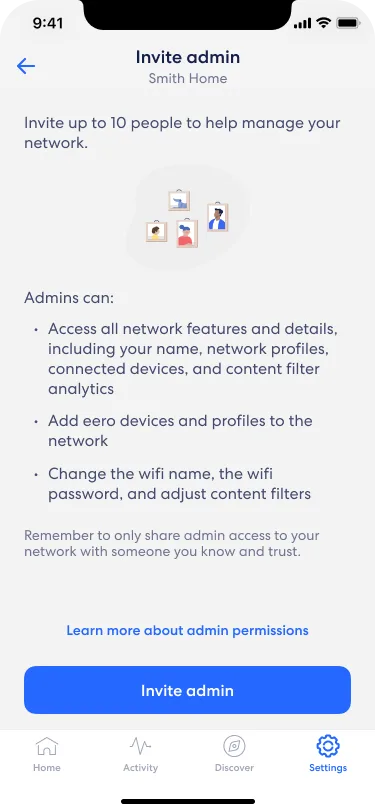
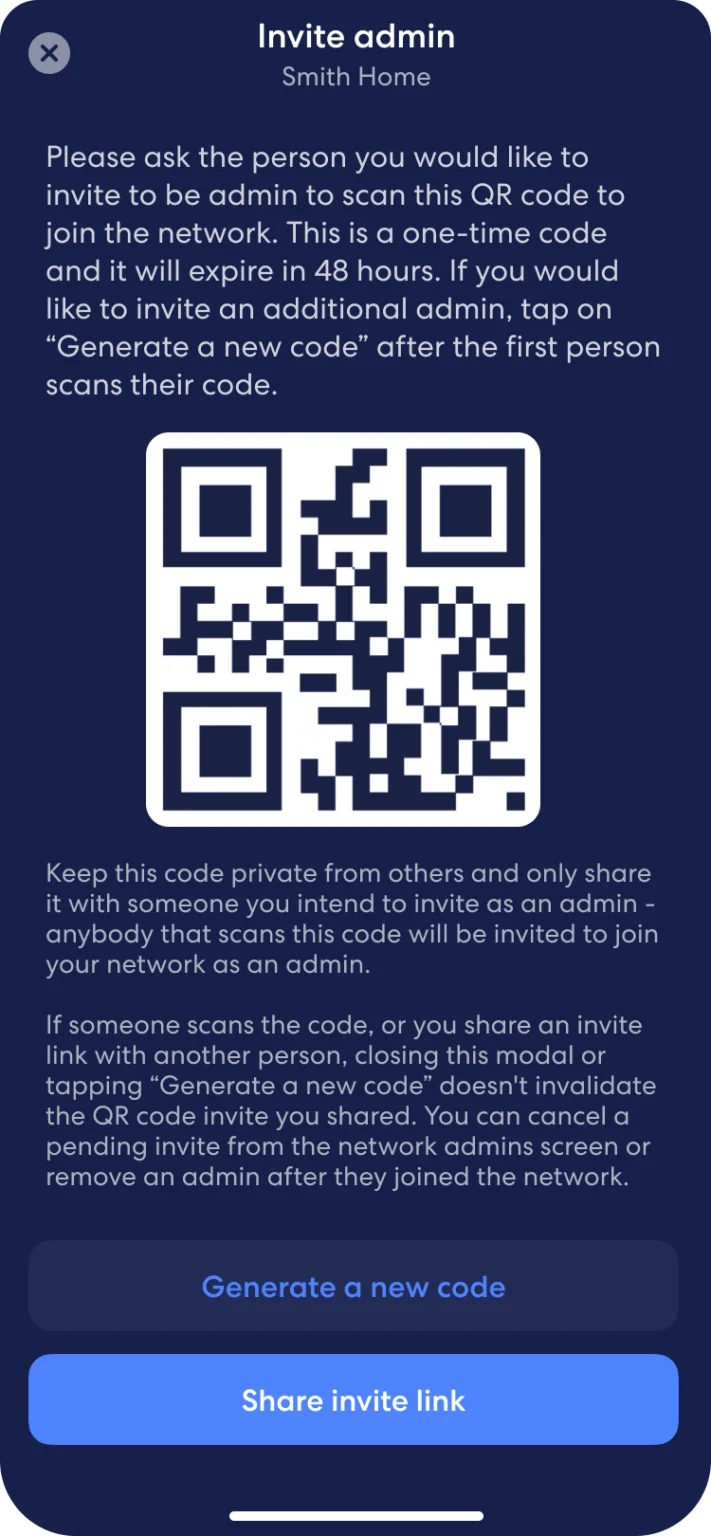
Step 4. Ask the admin to scan the QR code. Or tap Share invite link to email, text, or message the invite link to someone.
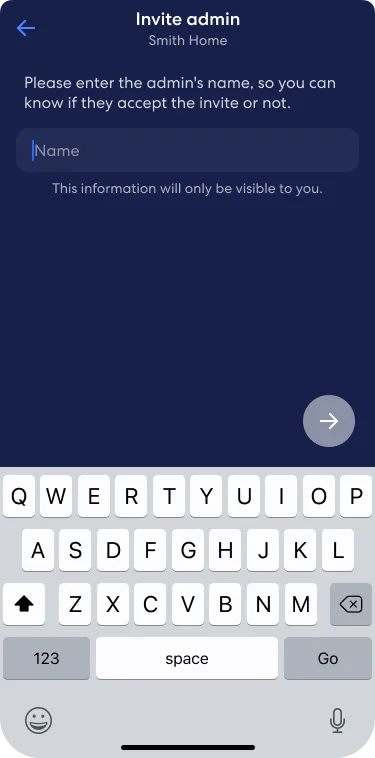
Step 5. If you share the invite via email, text, or messaging you can set a nickname for that person.
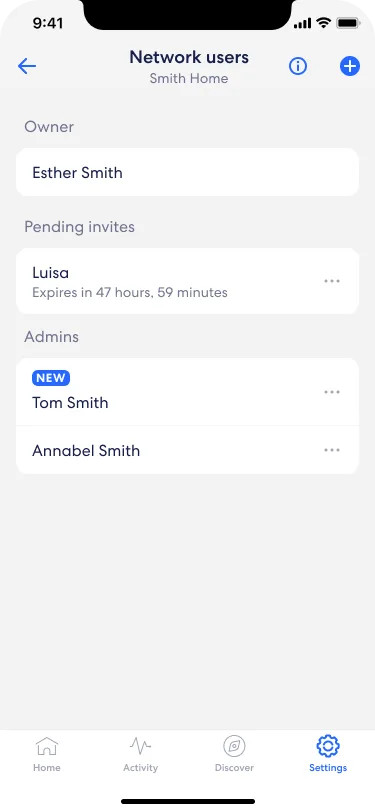
Step 6. (Additional) Tap Network users in your settings to see who you’ve granted Admin access to.
Easily transfer network ownership
Moving and want to transfer account ownership to a roommate? With eero Multi-Admin, you can generate a simple QR code that does just that.
The owner of a network has total access and control of the network and all of its settings. The owner is the only member of the network that is able to view, add, and remove network admins.
Note: Ownership transfer is unavailable if your network is managed by your Internet Service Provider or a professional network installation business.
How to transfer account ownership?
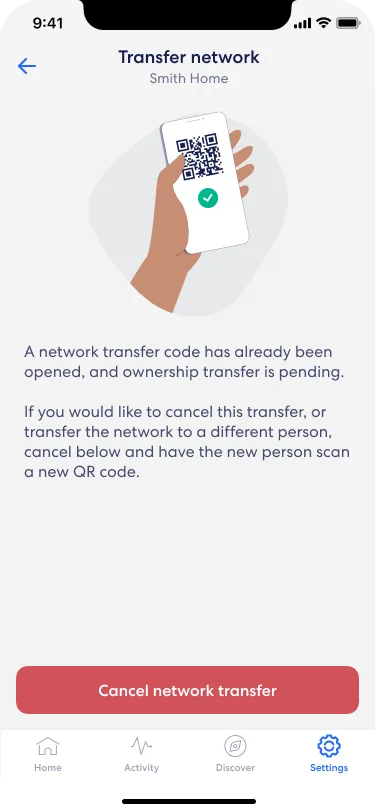
Step 1. Head to Settings in your eero app and tap on Transfer network.
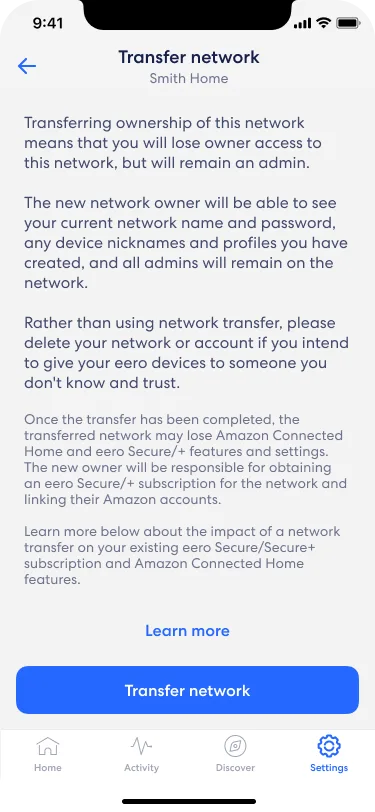
Step 2. Read and confirm the transfer.
Step 3. Ask the new owner of the eero network to scan the QR code.
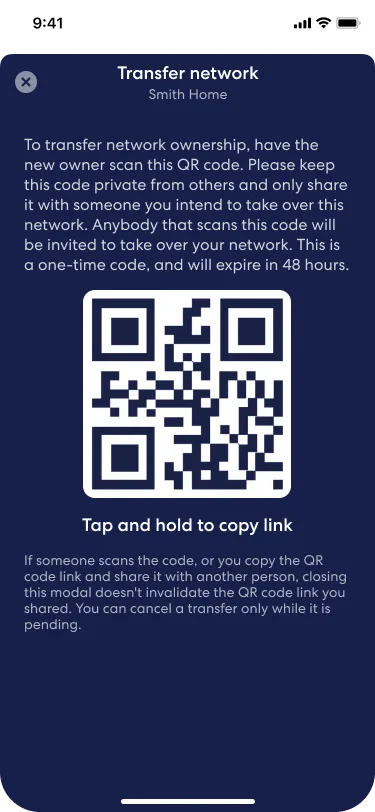
Step 4. (Optional) Need to cancel mid-transfer? Go back to the previous screen and tap Cancel network transfer.