How do I set up eero Signal?
eero Signal provides cellular backup for your eero network. Setup takes just a few minutes with the help of the eero App.
Available in 4G LTE and 5G RedCap options, it connects to the eero PoE Gateway or any USB-C-powered eero that supports Wi-Fi 6 or later. It can be placed wherever there is a compatible eero, giving you the flexibility to choose the location with the best cell service.
How do I set up eero Signal on my existing network?
Note: eero Signal does not support eero networks in bridge mode. Make sure your eero network is in NAT mode before beginning setup.
Open the eero App, and tap
 (blue plus icon)
Tap eero Signal and follow the on-screen instructions
Identify the eero in the location with the best cellular signal
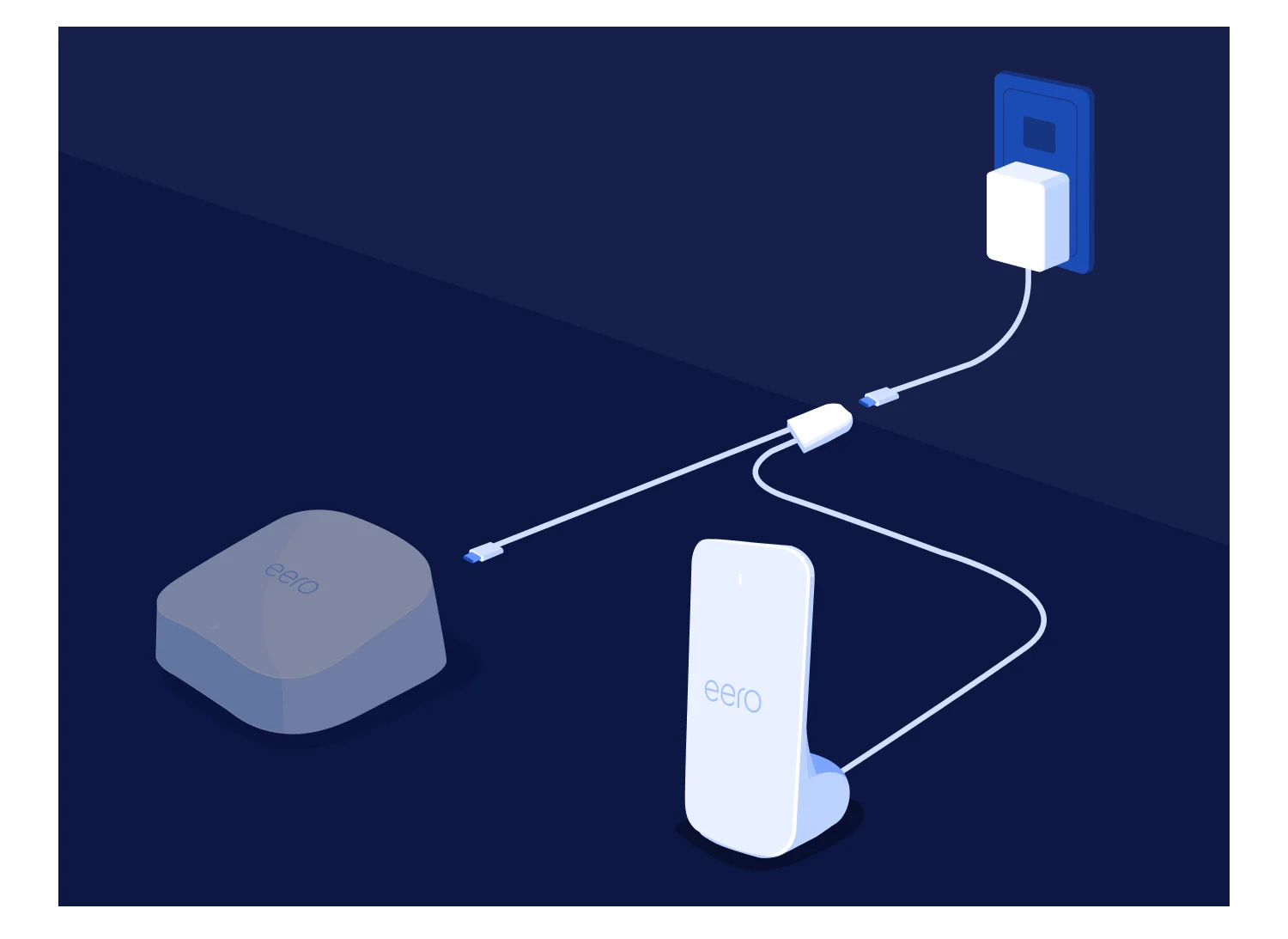
Connect the Y-splitter's junction to the AC adapter. If your Signal includes an AC adapter, use it for power. Otherwise, use your eero's original AC adapter. Plug the short cable from the Y-splitter to your eero
Note: For installation with eero PoE Gateway, see the “How do I connect eero Signal with eero PoE Gateway?” section below.
When Signal is ready, it will display a white LED. Later, while on backup, both Signal and all eeros will display an aqua LED
How do I connect eero Signal with an eero PoE Gateway?
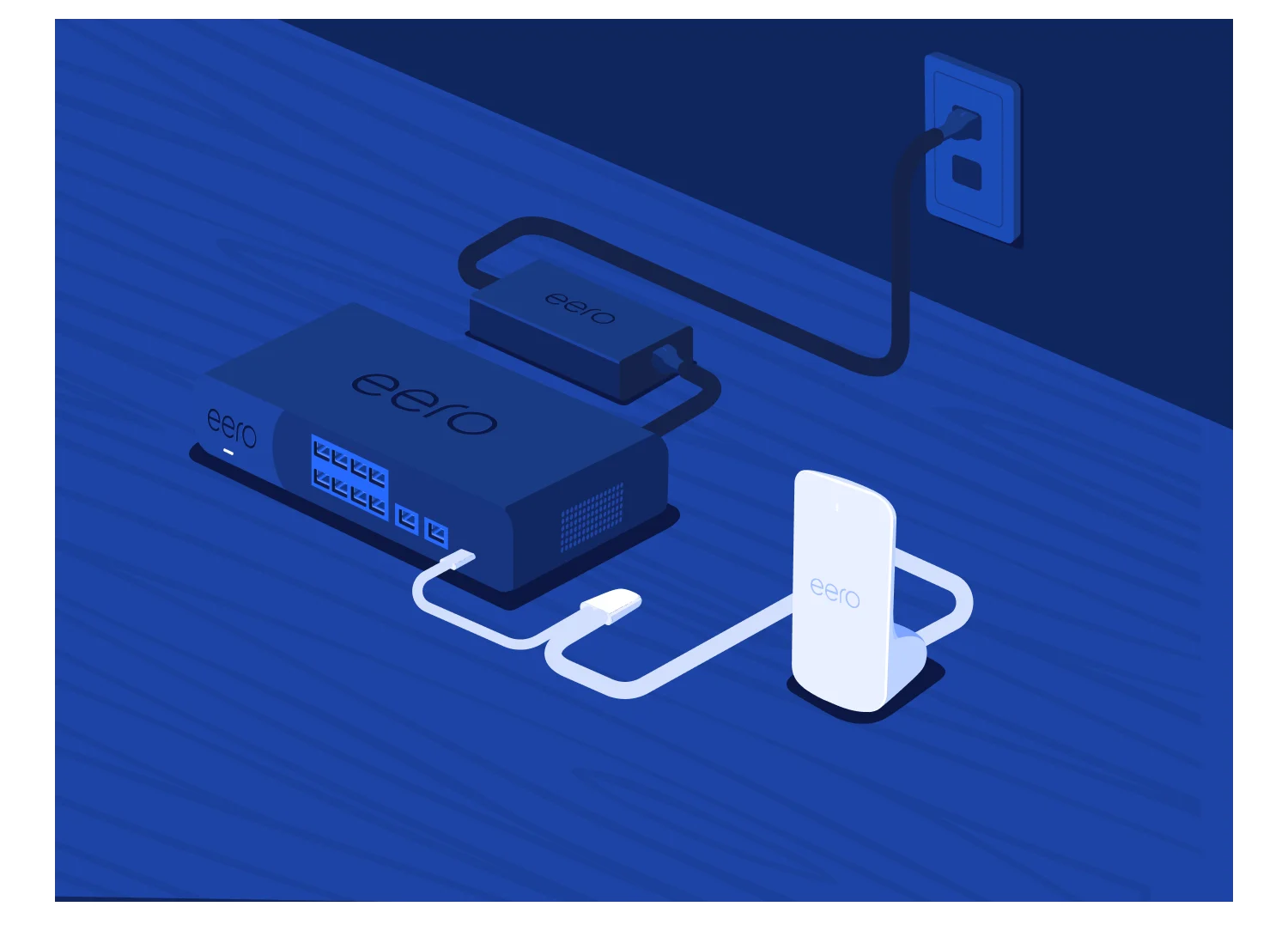
Plug eero Signal into the front USB-C port without plugging anything into the Y-cable
Plug the included 140 W adapter into the back USB-C port
Do not use the adapter that came with eero Signal as it can disrupt the 140 W operation and reduce available power for connected PoE devices
Note: With eero Signal connected, eero PoE Gateway allocates 9.3 W from its available power budget.
What do the LED colors mean?
LED Behavior | State |
|---|---|
| No power or LED disabled |
| Backup is ready and cellular connection registered |
| Powered on and waiting to be connected to an eero |
| Plugged in and waiting for eero |
| Being configured or updating firmware |
| Using cellular backup |
| eero Signal or host eero lack sufficient power |
| eero Signal does not have an associated data plan or has consumed all available data for the period |
| No cellular connectivity |
| Not plugged into an eero |
 No Light
 Solid White
 Flashing White
 Solid Blue
 Flashing Blue
 Solid Aqua
 Flashing Yellow/Orange
 Solid Red
 Flashing Red
Note: The meaning of the colors used by the LED of other eero models differ from the table above. See What do the colors of the LED light on my eero mean? for more information.
Frequently Asked Questions

Get the support you need
Choose how you'd like to connect: find contact numbers, international support options, or open a ticket.