How do I set up my eero PoE Gateway?
The eero PoE Gateway is a wired network gateway with 8 PoE-capable 2.5 GbE ports and two 10 GbE ports. It can power up to 8 PoE devices without requiring an additional PoE switch or injector.
Note: The eero PoE Gateway does not have wireless capability. You'll need to add an eero with wireless capability such as the eero PoE 6 or eero PoE 7 to your network to enable wifi access. See our eero PoE 6 Setup instructions or eero PoE 7 Setup instructions.
How do I install my eero PoE Gateway?
Install your eero PoE Gateway using the included 140 W USB-C power adapter.
Note: Install in a cool, dry location away from heat sources.
Tip: If you'd like to install your eero PoE Gateway on a rack, we recommend using the Amazon eero 1U Rack Shelf for eero PoE Gateway, which is specially designed for easy installation.
What's in the package?
(1) eero PoE Gateway
(1) 140 W USB-C power adapter
What do I need to set up my eero PoE Gateway?
You'll need:
eero iOS app (iOS 15.0 or later) or eero Android app (Android OS 9.0 or later)
eero PoE Gateway
Mobile device with a data connection (if you don't have access to a data connection, see our workaround instructions)
Internet connection and modem
Cat5e cable or better
The eero PoE Gateway has the same quick and easy setup procedure in the eero App as the rest of our eeros. See How do I set up eero?
What is the recommended network topology?
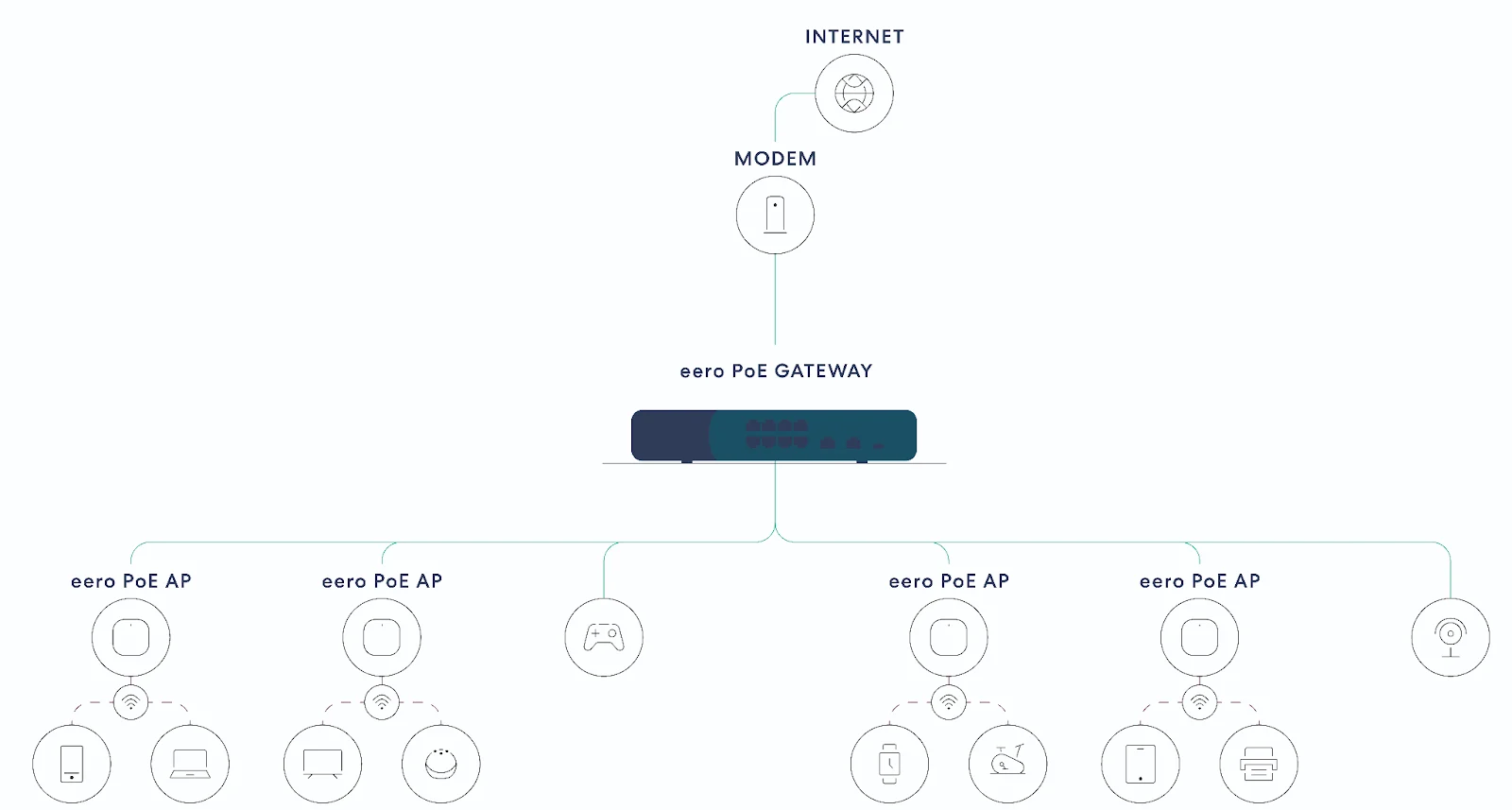
Tip: If you plan to implement the recommended topology shown above, we suggest using either of the 10 GbE ports for the WAN connection to your modem.
What ports does the eero PoE Gateway have?
The eero PoE Gateway has:
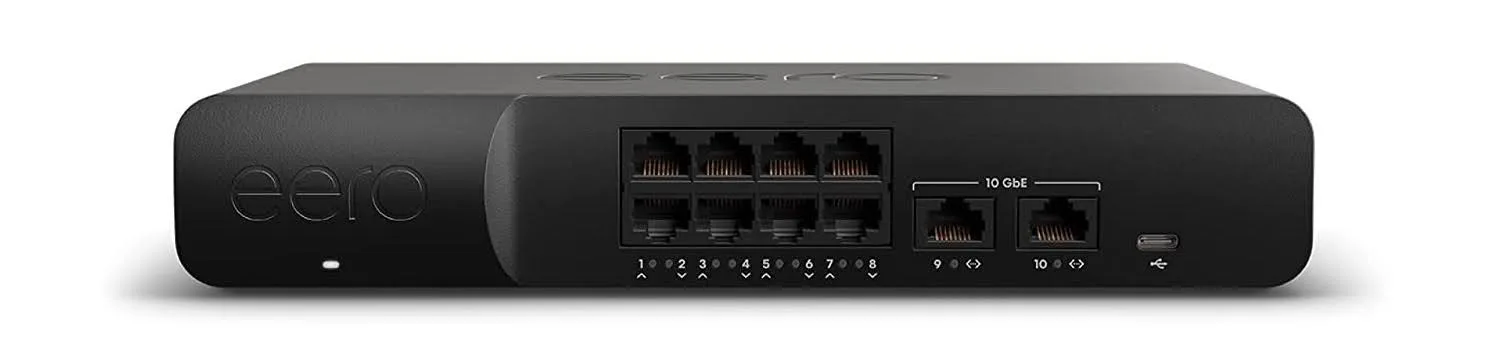
8 PoE-capable 2.5 GbE ports
Two 10 GbE ports
The eero PoE Gateway can power up to 8 PoE devices without requiring an additional PoE switch or injector. This equates to up to 8 eero PoE 6, 6 eero Outdoor 7, or up to 6 eero PoE 7 access points.
What happens when you connect multiple PoE devices?
Your eero PoE Gateway can power multiple PoE devices. Under normal use, all connected devices work without any issues.
Understanding power usage
Each PoE device uses different amounts of power based on what it's doing at any moment. During typical use, the total power stays well within your eero PoE Gateway's capacity. However, if multiple devices experience high traffic at the same time, there's a small chance the system could temporarily approach its power limit.
Depending on the internet speeds you’re receiving from your Internet Service Provider (ISP), eero’s Eco Efficiency Mode can reduce the power consumption of your PoE Gateway further.
How your eero PoE Gateway protects your network
If the total power demand gets too high, your PoE Gateway automatically manages the situation by temporarily shutting down one port at a time. Devices connected to this port will no longer receive power. This keeps your network stable and prevents any damage to your devices or gateway.
The likelihood of this happening depends on several factors:
How many devices you're using simultaneously
The amount of data being transferred
The number of clients connected to each device
For most users with typical usage patterns, you won't experience any interruptions.
What do the LED lights mean?
The system LED is located directly under the eero logo. Each port has its own separate LED indicator.
System LED indicators
These LED status colors generally match those used by most other eero models. For more information on our standard LED meanings, see What do the colors of the LED light on my eero mean?
Port specific LEDs
LED Behavior | State |
|---|---|
| No power or LED disabled |
| PoE power budget exceeded |
| Port configured to disable data, power, or both |
| 10/100 Mbps speed |
| 1000 Mbps speed |
| 2500 Mbps speed |
| 5000 Mbps speed (10 GbE port only) |
| 10000 Mbps speed (10 GbE port only) |
| Reserved |
 No Light
 Flashing Blue
 Solid Blue
 Flashing Yellow/Orange
 Solid Green
 Solid Aqua
 Solid White
 Solid Fucshia
 Solid Red
Frequently Asked Questions

Get the support you need
Choose how you'd like to connect: find contact numbers, international support options, or open a ticket.